How to Use Stremio
This guide is intended for people who read (it's a short guide, so please read it all). This is not a drawn-out piece of text by any means, and if you can't maintain an attention span for this long, leave. This is not a "how to pirate" guide; this is a "how to use Stremio" guide. If you are looking for a "how to pirate" guide, I suggest you look elsewhere.
As traditional movie websites become less reliable, it's the perfect time to explore professional ways to stream your favorite content. This is a step-by-step guide designed to help you get the most out of (probably) the best free streaming solution available today. Whether you're using a desktop, mobile device (Samsung, iOS, Android), or even a FireStick, this guide will walk you through everything you need to know no matter your skill level.
Reader's Note
This guide is meant to be read in order. There are 3 steps and then multiple subsections in those steps. If you are looking for a specific topic, I recommend using the table of contents or the search bar to find it. Each colored box in the guide is called an "Admonition" and is used to highlight important information; make sure to read them. The icons next to an admonition will sometimes be a link to a relevant source or reference that could also be of help to you. The guide is also resizable! You can click and drag the sides of the content block. This guide uses Torbox and Real-Debrid for simplicity, but I encourage you to research which Debrid provider best fits your needs before committing to one.
What You'll Need
- The Stremio client (free).
- The appropriate addons for streaming (free).
- A Debrid subscription (~$5 a month).
Can I Do This for Free?
Yes. Skip the Debrid subscription and just use the plain Torrentio addon. The setup is the same, but you must set the "Debrid Provider" to "None" in the Torrentio configuration. This will not be nearly as fast, and you may need to use a VPN based on where you live as a Debrid service will not be protecting you.
Debrid Service Token
Debrid is a service that allows you to download and stream all kinds of content, from software, music, and games to adult content and 4K movies (40GB+), hosted on supported premium file hosters like Rapidgator, Uploaded, FileFactory, Turbobit, Nitroflare, etc at great speeds (1+ Gbps). It also caches a lot of torrents, giving you instant download/streaming capabilities without the need for seeders.
I personally use Real-Debrid, because it was the most popular option when I started but do your own research before sticking with a provider. I recommend looking for a provider that supports a wide range of hosters, has good speeds, and allows copyrighted content (or doesn't care about it).
Getting Your Real-Debrid Subscription and API Token
- Head to real-debrid.com and click "Sign Up" in the top right.
- Ensure your VPN is turned off, create an account, and then sign in.
- Now that you have an account, go to real-debrid.com/premium and purchase a premium subscription plan. (I recommend the 90-day option ~10$ USD/3mo)
- Complete the payment using your selected method.
- Once you have a subscription, go to real-debrid.com/apitoken and copy your token.
Getting Your Torbox Subscription and API Token
- Go to torbox.app/login and click "Don't have an account yet?" below the "Continue" button.
- Ensure your VPN is turned off and proceed to create an account.
- Now that you have an account, go to torbox.app/subscription and purchase a subscription plan. (I recommend the PRO option ~10$ USD/mo)
- Complete the payment using your selected method.
- Head to torbox.app/settings and scroll down to "API Key" then, click the green "Copy API Key" button.
Stremio Setup
Stremio is a streaming client designed around P2P file sharing. It is highly customizable, even featuring an SDK that allows you to add your own features. Its biggest advantage is that it syncs to Trakt.tv, which can recommend new media and track your progress and watch lists.
Installing Stremio & Setting up Torrentio
- Download the client by heading to stremio.com/downloads and selecting the appropriate version for your device.
- Run the downloaded file and follow the setup instructions. You will need to create an account. Make sure to remember your login credentials.
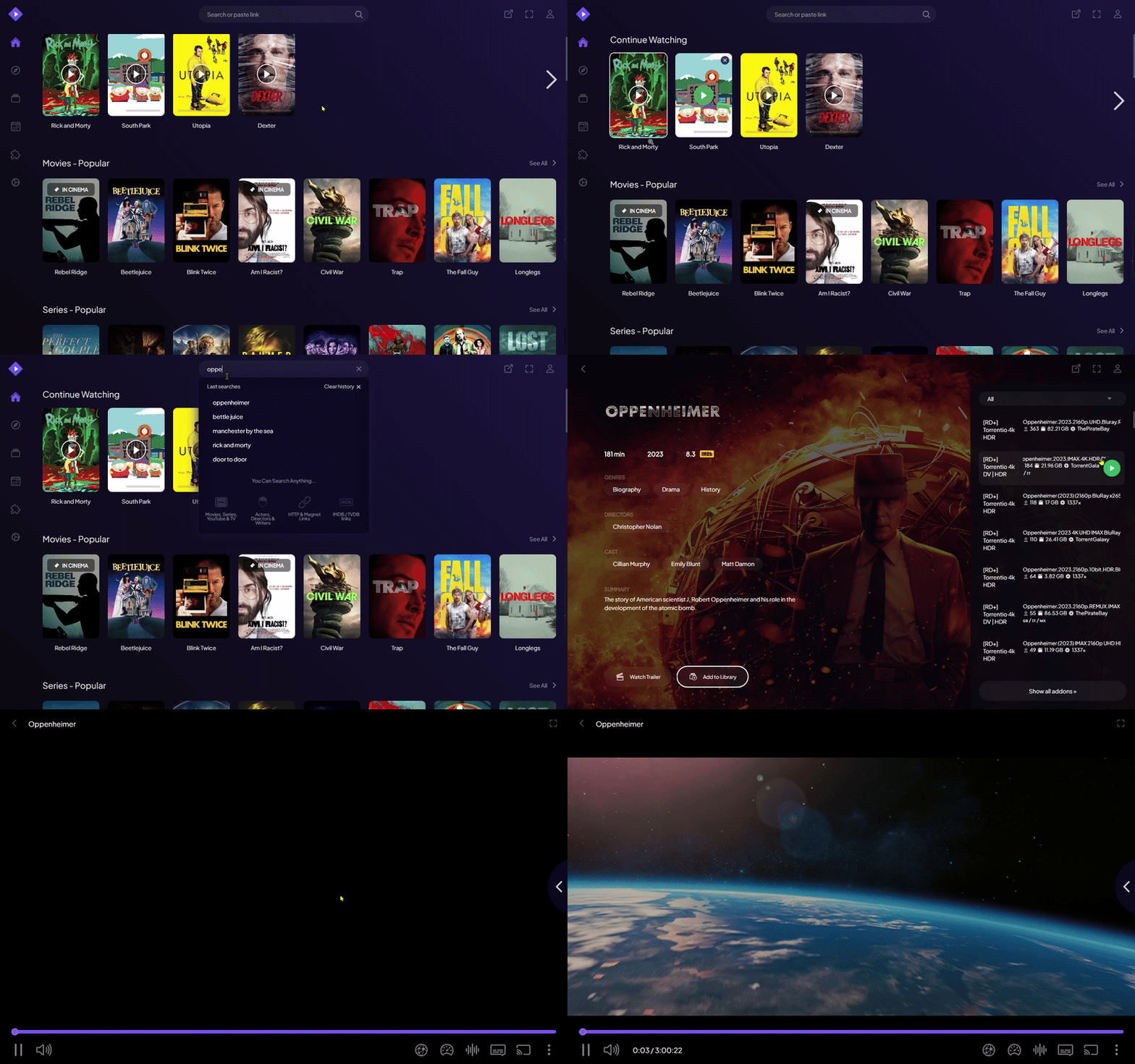
- Once installed, open Stremio. The home screen should appear with a purple theme, similar to Sudo-Flix.
- Go to Addons (puzzle piece icon in the left sidebar), then switch to your browser.
- Visit torrentio.strem.fun to configure the Torrentio addon. Adjust the settings as needed.
- Scroll to the "Debrid provider" section, select your provider, and paste your API token into the "API Key" field.
- Click the purple "Install" button. If it doesn't open Stremio, right-click the button, copy the link, and paste it into Stremio's search bar.
Manual Addon Install
If the "Install" button doesn't work or you are on a device where it doesn't trigger the app:
- Right-click (or long-press) the "Install" button on the addon page.
- Select Copy link address (or similar).
- Open Stremio and paste this URL into the search bar.
- Press enter, and a prompt to install the addon should appear.
Additional Addons May Ask for Your API Key
When installing other addons that aren't Torrentio, you may be asked for your Debrid API token again. I highly recommend entering your token if prompted, as it significantly speeds up your streaming experience. Any addons found online from reputable sources, as well as those listed in the "Community Addons" section, are fair game.
Extra Setup & Customization
FireStick Setup
- Go to the home screen of your FireStick and click on your profile on the right.
- Go to Settings > My Fire TV, and click "About" 7 times quickly to enable developer options (guide).
- Head to the Amazon App Store, search for "Downloader," and install it.
- Once "Downloader" is installed, go to Settings > My Fire TV > Developer Options and turn on "Install Unknown Apps" for "Downloader".
- Open Downloader and go to stremio.com/downloads to download the Android TV version.
- Once downloaded, click "Install" and then "Open." (If you're having trouble clicking "Install," use a game controller.)
- Sign in to your Stremio account, either on your phone or desktop.
- Once signed in, go to Addons > Sync Addons to sync your addons from your account to your FireStick.
Android Setup
Stremio can be installed from the Play Store
- Download the appropriate APK for your device from Stremio's download page (you will most likely need to download the ARM64 APK).
- Install the downloaded APK.
- Login to your Stremio account.
- Go to Addons > Sync Addons to sync your addons.
Samsung TV (Tizen) & LG TV (WebOS)
Stremio now has native apps for Samsung (2019+ models) and LG (2020+ models) TVs.
- Turn on your TV and navigate to the App Store (Samsung Apps or LG Content Store).
- Search for "Stremio".
- Download and install the app.
- Launch the app. It will show a QR code or a link. Scan it with your phone or visit the link on a computer to log in.
- Once logged in, your addons (like Torrentio) will automatically sync!
Usenet Setup
Usenet is a decentralized platform for sharing content, organized into "newsgroups," which function like forums for posting messages and files. In Stremio, the focus is on NZB files binaries for video content shared within these groups. To access Usenet, you'll need a paid Usenet provider, which hosts the servers storing this content. These providers charge for access due to the costs of hosting and bandwidth required for downloading from newsgroups.
- Head to torbox.app/login and create an account or login if you already have one.
- Now, go to torbox.app/subscription and purchase the "Pro" plan. This includes the usenet as well as Torbox's Debrid service.
- To use Torbox in Stremio, visit this link, scroll to the "Debrid provider" section, select "Torbox," and enter your API key.
- Click the purple "Install" button. This should open Stremio and prompt you to choose "Install," "Configure," or "Cancel".
- If the purple button does not open Stremio, right-click the button to copy its link, then paste it into the Stremio search bar
Metadata Addons: Anime Kitsu vs Cinemeta
Cinemeta is the default metadata provider for Stremio, using IMDb IDs
(tt...). It works great for movies and western TV shows However, for Anime,
Cinemeta often has mapping issues (e.g., seasons not matching correctly).
Anime Kitsu is recommended for Anime. It uses Kitsu IDs, which are much more accurate
for Anime seasons and episodes. Torrentio supports Kitsu IDs natively, so using Anime Kitsu alongside
Torrentio ensures you get the correct streams for the correct episodes.
Logging Into Trakt.tv
- First, create a Trakt account here.
- Open Stremio and go to Settings (gear icon in the left sidebar).
- Scroll down to Trakt Scrobbling and click the "Authenticate" button beside it.
- You will be taken to a Trakt page where you will need to authorize Stremio to access your account.
- Once authorized, try watching something from your media library. It should now be tracked on Trakt.
Different Debrid Providers
There are multiple Debrid providers available, some better than others. I (and many others) recommend Real-Debrid due to its popularity, speed, features, and affordability. However, there are many other providers. The reason these aren't used in this guide is due to their lack of compatibility with other addons, whereas Real-Debrid is widely supported. However, there are cheaper providers such as Torbox, Debrid-Link, and AllDebrid to name a few.
- Real-Debrid, 🇫🇷
- Torbox, 🇿🇦
- AllDebrid, 🇫🇷
- Premiumize, 🇲🇾
- Debrid-Link, 🇫🇷
- Put.io, 🇹🇷
- OffCloud, 🇧🇬
- Deepbrid, 🇨🇭
Debrid Speed Tests
Each debrid provider includes links to speed tests. These tests offer valuable insights into the connection speeds you can expect when using their services.
Debrid Media Manager
Debrid Media Manager (DMM) is a powerful tool to manage your Real-Debrid/AllDebrid cloud.
- Find Cached Content: DMM allows you to search for movies/shows and instantly see what is cached on Real Client. This is huge for finding content that Torrentio might miss or show as uncached.
- Library Management: You can add cached torrents directly to your Debrid library.
- Watch on Stremio: Once added to your library, you can watch it in Stremio via the "Debrid Search" addon or by enabling the "Debrid Catalog" option in Torrentio.
Other Addons
- Wyzie Subs: Wyzie Subs is a Stremio addon that provides subtitles for movies and TV shows. You'll need a free API key from store.wyzie.io.
- Orion: Orion Stremio Addon allows Orion-indexed torrent, usenet, and hoster links to be played on Stremio.
- USA TV: Provides access to channels including local channels, news, sports, entertainment, and more.
- Open in Stremio: Allow you to open movies you see on IMDB or Trakt straight to your Stremio.
- Trakt TV: Addon for getting Trakt's public user lists, recommendations, and watch list.
- MediaFusion: Addon for live TV and sports events across the globe.
Rating Poster DB (RPDB)
Want to see IMDb/Rotten Tomatoes ratings directly on the movie posters in Stremio? That's what RPDB does.
- Free Tier: Use the API Key
t0-free-rpdbto get basic ratings on posters. - Paid Tier: Offers textless posters, high-res badges (4K, HDR), and more customization.
To use it, you install the Cinemeta (with ratings) addon or configure other addons (like Cyberflix) to use your RPDB API key.
Most of these are "Community Addons" and can be found in the Stremio "Community Addons" section of your client for quick install. Other unlisted addons can be downloaded from here.
Troubleshooting & FAQ
"No Streams Found"
This is the most common issue. Here's what to check, in order:
- VPN is on: Turn off your VPN. Debrid providers restrict access to one IP address, and a VPN changes yours. This is the #1 cause.
- Torrentio misconfigured: Revisit torrentio.strem.fun and make sure your Debrid provider is selected and your API key is pasted correctly.
- ISP blocking: Some ISPs block addon domains. Try changing your DNS to
Cloudflare (
1.1.1.1) or Google (8.8.8.8). See Stremio's DNS guide. - Content not available digitally: If the movie is still in theatres, no digital streams exist yet. You might only see CAM/Screener quality.
- Niche content not cached: The torrent exists but isn't cached on your Debrid provider. Use Debrid Media Manager to manually search and add it.
Buffering & Stuttering
- Check your internet speed: Test at Cloudflare Speed Test. You need ~25 Mbps for 4K, ~10 Mbps for 1080p.
- Test Debrid speed: Run the speed test on your Debrid provider's site. If it's slow, try changing the server/route in your Debrid settings.
- Enable hardware-accelerated decoding: Go to Settings > Player > Advanced and enable it (desktop only).
- Choose a smaller stream: If your device struggles, pick a lower quality or smaller file size stream rather than the 40GB+ 4K Remux.
- Increase cache size: Go to Settings > Streaming and increase the cache size. Set the torrent profile to "Ultra Fast" if you're not using a Debrid service.
Addon Won't Install
- "Install" button does nothing: The browser can't communicate with the
Stremio app. Right-click the Install button, copy the link, and paste it into Stremio's
search bar. Replace
stremio://withhttps://if needed. - Addon appears broken after install: Check ElfHosted Status to see if the addon's server is down. Also check r/StremioAddons for reports.
- Reconfigure after Debrid renewal: Some providers (especially Real-Debrid) regenerate your API token when your subscription renews after it expires. Reconfigure all addons with the new token.
Syncing Between Devices
Stremio stores your addons and library in the cloud tied to your account. To sync:
- Sign into the same account on all devices. Your addons will sync automatically.
- Click "Sync Addons" if prompted (common on FireStick/Android TV after first sign-in).
- Use Stremio Web as fallback: Visit web.stremio.com to manage addons from any browser, then sync to your device.
Downloading Content via Debrid
You can download content through your Debrid provider's website after starting a stream:
- Start playing the content in Stremio. This sends the torrent to your Debrid provider's servers.
- Go to your Debrid dashboard: Real-Debrid Torrents or Torbox Dashboard.
- Download the file directly from the Debrid provider at full speed.
Alternatively, click the 3 dots in the Stremio player and select "Download this video." You can also use Stremio Downloader for batch downloads.
Red Screen / Stream Won't Play
- Expired Debrid subscription: Check that your plan is still active. If you renewed after expiry, your API token may have changed requiring you to reconfigure your addons.
- Debrid service is down: Check your provider's status page or social media.
- DV/HDR10+ incompatibility: Some devices (e.g., FireStick 4K Max) can't play Dolby Vision Profile 7 streams. Choose a non-DV stream instead.
- Audio plays but black screen: Your device can't decode the video. Try a different stream or use an external player like VLC or MX Player.
Real-Debrid DMCA Takedowns
Real-Debrid complies with DMCA takedown requests, which means some torrents may be removed from their servers. If you see this message: "File was removed from debrid service due to copyright infringement"
- Try a different stream: Select another torrent from the stream list. Different uploads of the same content may still be available.
- Use a different addon: Try MediaFusion or other addons that may source from different torrents than Torrentio.
- Use Debrid Media Manager: Search for alternative cached torrents and add them to your library manually.
- Consider Torbox: Torbox is based in South Africa and is generally less affected by DMCA takedowns compared to Real-Debrid.
Subtitle Issues
- No subtitles appearing: Install the Wyzie Subs addon for automatic subtitle fetching (requires a free key from store.wyzie.io).
- Subtitles display incorrectly: This usually happens with SSA/ASS subtitle formats. Stremio's default player (ExoPlayer) doesn't support them fully. Switch to an external player like Vimu Player or VLC.
- Use your own subtitles: Drag and drop a subtitle file (.srt, .vtt) directly into the Stremio player.
More Questions?
- Guide to Stremio Torrentio
- FireStick Stremio Setup
- Stremio User Manual
- Signing Into Trakt
- Debrid Services
- Stremio FAQ's
Please reach out to me if any issues arise. This guide's source code is available here. I'm open to additions and corrections via pull requests on Github. Join our community on Telegram for discussions and support regarding Stremio!